
Ascii Art Maker
Make ASCII art in seconds. Upload a photo or logo and the maker turns it into text characters — dense ones like @ and # for dark areas, light ones like . and : for bright areas — at the width you choose. Or type a word and get a big banner built from characters for code comments, README files, terminal greetings and social posts.
- Free to use
- No sign-up
- Runs in your browser
Quick answer
ASCII logo creator: use this page to make a logo-like text banner from typed words, or convert an uploaded logo image into ASCII characters. Choose the width, character set, contrast, and invert option, then copy or download the result as .txt. For README files, terminals, and code comments, paste the output in a monospaced code block.
ASCII art maker
ASCII Art & Text Graphics Pack
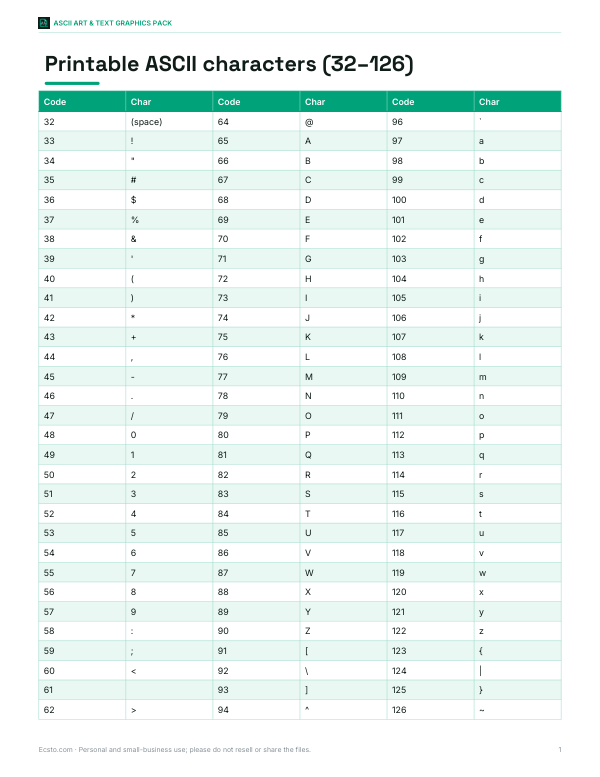
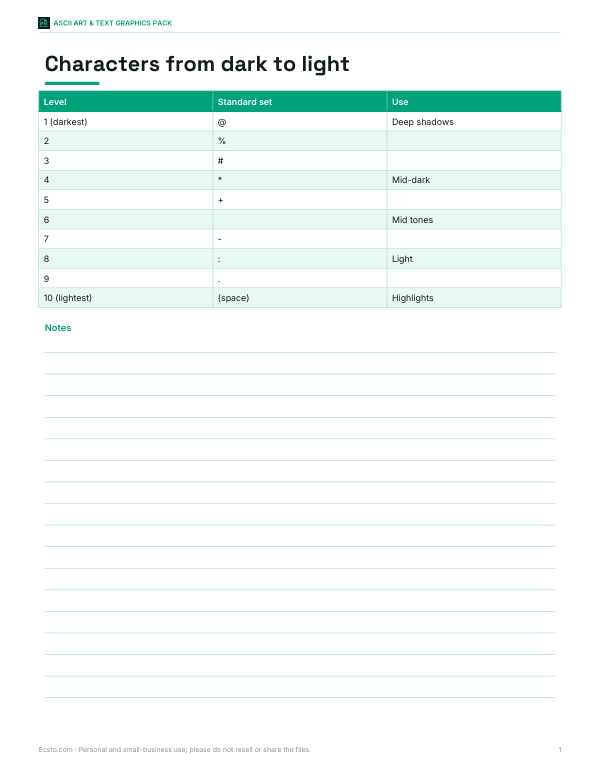
Printable ASCII and box-drawing character reference, a character density chart for ASCII art, 26 A–Z banner letters as a text file reference and a monospace art planning grid.
- ASCII reference (PDF/XLSX)
- Density chart (PDF)
- Planning grid (PDF)
- Posting checklist (PDF, DOCX)
Formats: PDF, XLSX, DOCX. Instant download after payment (link valid 72 hours, up to 5 downloads). AI-assisted: the templates were drafted with AI help and reviewed and laid out before publishing.
$3.00 USD, one-time 4 files · about $0.75 each
- Instant download
- 7-day refund
- Secure checkout by Stripe
7-day money-back guarantee. Full refund within 7 days of purchase, even after you download.
Free sample: ASCII Character Reference (PDF, 57 KB)
Full refund within 7 days — see the refund policy and license.
Free printables
Single sheets you can print right now, no sign-up. The full pack adds every sheet in one download plus the editable files.
 Printable ASCII Art Posting Checklist
Best settings for ASCII logos
Use these starting points, then adjust width and contrast until the logo stays readable.
| Use | Mode | Width | Character style | Tip |
|---|---|---|---|---|
| Typed logo | Text banner | 60–100 | Standard | Use short words |
| README title | Text banner | 70–100 | Standard | Paste in a code block |
| Terminal greeting | Text banner | 60–80 | Standard | Use invert for dark screens |
| Uploaded logo | Image to ASCII | 60–120 | Standard | Start with high contrast |
| Simple mark | Image to ASCII | 40–80 | Simple | Works for clean shapes |
| Detailed logo | Image to ASCII | 100–150 | Detailed | Best viewed zoomed out |
| Retro block look | Either | 60–120 | Blocks | Needs block-character support |
How image-to-ASCII conversion works
The maker shrinks your image to the width you choose — one pixel per character — and measures the brightness of each pixel. It then picks a character whose visual “weight” matches: dense characters such as @, # and % for dark areas and light ones such as ., : and spaces for bright areas. Because text characters are roughly twice as tall as they are wide, the image height is halved so the result is not stretched. The contrast slider spreads brightness values apart so edges and features stand out.
Choosing settings
| Setting | Effect | Tip |
|---|---|---|
| Width | Number of characters per line | 60–100 for chat and README files; 150+ for detailed art viewed zoomed out |
| Standard characters | 10 brightness levels | Clean look; works well for logos |
| Detailed characters | 70 levels | More tonal detail for photos |
| Blocks | █▓▒░ shading | Bold, retro look; needs a font with block characters |
| Contrast | Separates light and dark | Increase for low-contrast photos |
| Invert | Swaps light and dark | Use when the art will be shown as light text on a dark background, like most terminals |
Picking the right image
- High-contrast images convert best: silhouettes, logos, portraits with strong lighting.
- Plain or removed backgrounds keep the subject clear.
- Crop tightly — at 80 characters wide, small details disappear.
- Line art and icons look great with the Simple character set.
- Busy photos with lots of mid-tones become muddy; boost contrast or try a larger width.
Text banners
Banner mode draws your text in a bold font on a hidden canvas and converts it into characters, producing big letters like classic terminal banners. Use short words — names, project titles, “HELLO”, “WELCOME” — because every letter takes several characters of width. Banners are popular at the top of source files, in README files, in command-line tool start-up messages, server login banners and plain-text emails.
Displaying ASCII art correctly
ASCII art only lines up in a monospaced font, where every character has the same width — Consolas, Menlo, Courier, or the font in your terminal and code editor. In proportional fonts the columns drift and the picture falls apart. When posting online, wrap art in a code block (three backticks in Markdown, Discord and many forums) so it keeps its spacing. Some chat apps trim repeated spaces; the Simple set with “.” instead of spaces survives better.
A brief history
Pictures made from typewriter characters predate computers, and early computer users printed ASCII art on line printers in the 1960s and 70s. Bulletin board systems, Usenet and early internet culture made it a folk art form, with signature blocks, banners and elaborate scenes. FIGlet, released in 1991, popularised big text banners from character fonts. Today ASCII art lives on in code comments, terminal tools, game jams and retro-style social posts.
Worked example
A developer wants their project logo at the top of a README. They upload the logo PNG, set the width to 70 characters, choose the Standard set and raise contrast to 1.6 so the logo edges are crisp. The preview shows a 70 × 30 character block. They copy it into a Markdown code block and push it — and use Banner mode to add the project name in big letters above it.
ASCII vs Unicode art
Strict ASCII uses only the 95 printable characters on an American keyboard. The Blocks set uses Unicode shading characters (█▓▒░), which give smoother tones but may not display in every font or older system. For maximum compatibility — emails, old terminals, code comments — stick to the Standard, Detailed or Simple sets.
Tips for great results
- Crop to the subject before uploading; empty background wastes characters.
- For faces, increase contrast and try widths between 80 and 120.
- For logos, use the Simple set and a width that matches the logo’s detail.
- Preview the result in the same font and size where it will be used.
- Invert when pasting into dark-mode editors and terminals so bright areas stay bright.
- Save a few versions at different widths — small ones for chat, large ones for posters.
Using ASCII art in code
Banners in source code are usually placed inside a comment block at the top of a file. In JavaScript or C, use /* … */; in Python, a string or # comments; in shell scripts, # comments. Keep lines under your project’s line-length limit, and avoid characters that have special meaning in your language (such as a closing */ inside a C comment). Command-line tools often print a banner when they start — store it as a multi-line string and print it once.
Printing ASCII art
ASCII art can be printed as a poster: download the text file, open it in a text editor with a monospaced font, set a small font size (6–8 pt) so the full width fits the page, and print. Larger widths (200+ characters) produce surprisingly detailed images when printed large and viewed from a distance.
Privacy
Images are processed in your browser and never uploaded.
Frequently asked questions
Can I make an ASCII logo from text?
Yes. Choose Text banner mode, enter the name or word, set the width, and copy or download the generated ASCII banner.
Can I turn an existing logo image into ASCII?
Yes. Use Image to ASCII mode, upload the logo, then adjust width, character style, contrast, and inversion to make the mark readable.
What width works best for an ASCII logo?
For README files, terminals, and chat, start around 60–100 characters wide. Use 100–150 or more for detailed logos that will be viewed zoomed out.
How do I convert an image to ASCII art?
Upload the image, choose a width and character set, then copy or download the result.
Why does my ASCII art look stretched?
It must be displayed in a monospaced font; the maker already compensates for tall characters.
What width should I use?
60–100 characters for most uses; wider for detailed art.
Can I make big text banners?
Yes, choose Text banner mode and type a short word.
How do I post ASCII art on Discord or GitHub?
Wrap it in a code block with three backticks.
Are my images uploaded?
No, conversion happens in your browser.